The world generates over 50 million metric tonnes of electronic waste each year, and the United States leads the way at roughly 10 million metric tonnes annually. Only about 15–17% of that e-waste is properly collected and recycled. The rest ends up in landfills, incinerators, or informal processing operations — and the hard drives inside those discarded computers often still contain recoverable personal data. Recycling your old electronics is the right call for the environment, but handing over an un-wiped hard drive is an open invitation for identity theft.
Key Takeaways:
- Always wipe your hard drive before recycling — most recyclers do not erase data before processing equipment
- A single-pass overwrite is sufficient for modern HDDs; SSDs require firmware-level Secure Erase or Sanitize commands
- Choose R2 or e-Stewards certified recyclers to ensure responsible handling of both your data and the e-waste materials
- Physical destruction is the fallback for dead, damaged, or classified-data drives — but wiping and recycling is better for the environment when possible
- Businesses need documented chain of custody, certificates of erasure, and compliance with applicable regulations like HIPAA or GDPR
Why You Must Wipe Before Recycling
The recycling pipeline is not designed to protect your privacy. When you drop off a computer at a recycling center, that machine enters a processing chain where hard drives may be pulled out, resold on secondary markets, exported to overseas refurbishers, or simply stockpiled. At every step, anyone with access to the physical drive can attempt data recovery.
The numbers back this up. A 2023 study by Blancco Technology Group found that 42% of used drives sold on secondary markets contained recoverable personal data — bank statements, tax returns, medical records, login credentials, and private photos. The Verizon 2024 Data Breach Investigations Report found that human errors, including poor data management during device disposal, contribute to 68% of data leaks. And a report by Kroll Ontrack found that 80–90% of devices not wiped with professional-grade tools still contained recoverable data.
What kind of data are we talking about?
- Financial records: Bank statements, tax returns, credit card numbers, payroll data
- Personal identity information: Social Security numbers, passport scans, driver's license copies
- Medical records: Health histories, insurance information, prescription data
- Login credentials: Saved passwords, browser sessions, email archives
- Business data: Client lists, contracts, intellectual property, internal communications
Simply formatting your drive does not erase this data. A quick format takes seconds because it only clears the file system index — your actual files remain on the disk's platters or flash cells, fully recoverable with free software. Even a full format is not a verified data sanitization method.
The process is similar if you're selling your PC. Our guide to wiping a hard drive before selling covers that scenario in detail. But recycling introduces an additional wrinkle: you're handing the equipment to a third party whose primary concern is material recovery, not your data security.
Wipe vs. Physical Destruction: When to Use Each
Not every drive should be wiped. And not every drive should be physically destroyed. The right approach depends on whether the drive still works and how sensitive the data on it was.
When Wiping Is the Right Choice
Wiping is the preferred option whenever the drive is functional. It allows the drive or its materials to re-enter the supply chain, reducing environmental impact and recovering valuable raw materials — including copper, aluminum, rare earth elements, gold, and palladium.
Wipe when:
- The drive powers on and is recognized by BIOS/UEFI
- The data sensitivity is personal, business-general, or regulated (with proper certification)
- You want to recycle or donate the equipment responsibly
- The drive has no significant bad sectors or hardware failures
When Physical Destruction Is Necessary
Physical destruction is the last resort — reserved for situations where wiping is not possible or the risk tolerance demands absolute certainty.
Destroy when:
- The drive is dead, won't spin up, or has severe mechanical failure
- The drive contained classified or top-secret information subject to specific destruction policies
- Multiple bad sectors mean portions of the drive cannot be overwritten
- Organizational policy mandates physical destruction regardless of drive condition
Physical destruction methods include professional shredding (industrial shredders reduce drives to fragments smaller than a postage stamp), degaussing (exposing the drive to a powerful magnetic field that scrambles the magnetic domains — works only on HDDs, not SSDs), and drilling or crushing (putting multiple holes through the platters or physically deforming the drive).
If you go the destruction route, check our guide on wiping dead hard drives for options when a drive won't power on. For drives that still function, wiping is always the more environmentally responsible path.
Bottom Line: If the drive works, wipe it and recycle it. Physical destruction wastes recoverable materials and should only be used when the drive is non-functional or the data classification demands it. A proper single-pass wipe on an HDD or firmware-level sanitize on an SSD makes data unrecoverable — you do not need to smash the drive with a hammer.
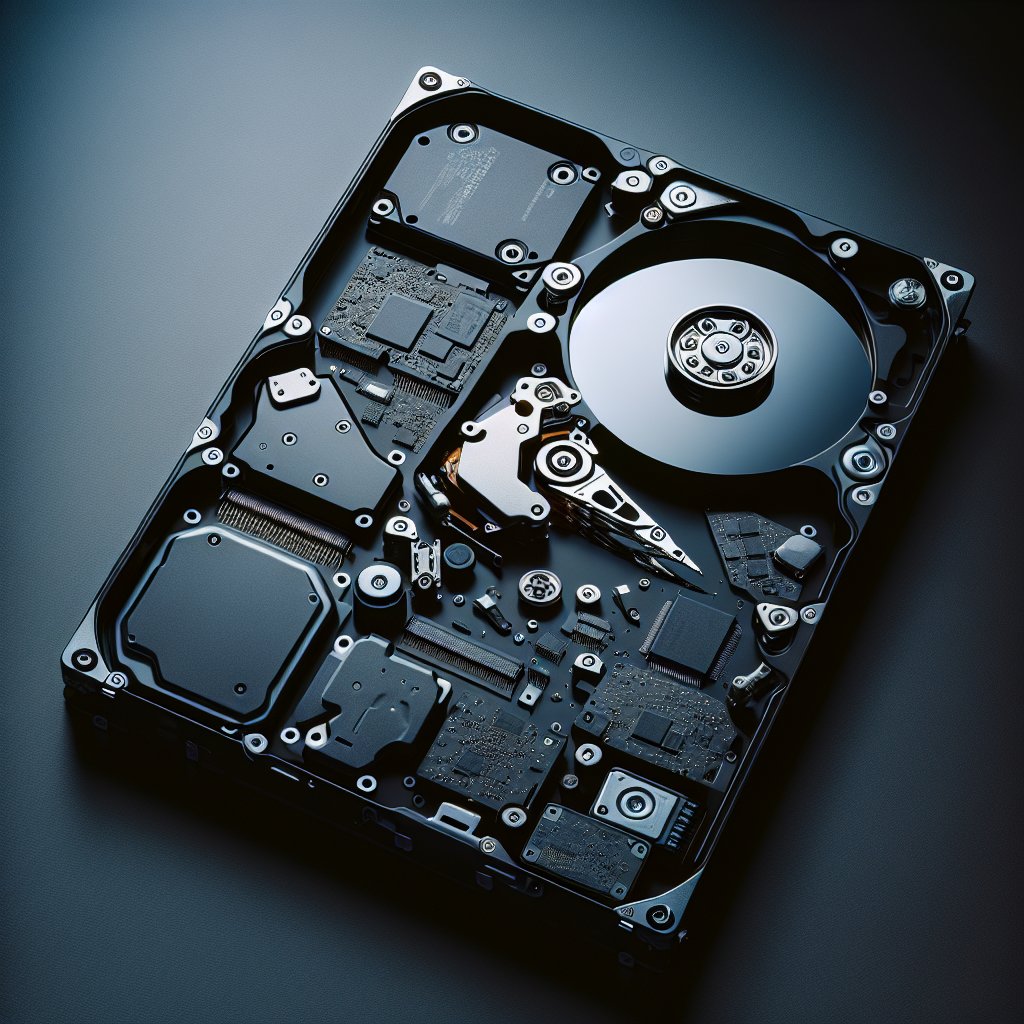
How to Wipe a Hard Drive Before Recycling
The process varies depending on your operating system and drive type. For comprehensive step-by-step instructions, see our complete guide to wiping a hard drive. Here is a quick reference for each platform.
Windows (10/11)
For your system drive (the one Windows runs on):
- Go to Settings > System > Recovery (Windows 11) or Settings > Update & Security > Recovery (Windows 10)
- Select Reset this PC and choose Remove everything
- Click Change settings and toggle Clean data to Yes
- Follow the prompts to begin the reset
This performs a basic overwrite of the drive. For HDDs, this provides reasonable security for personal data. For SSDs, the overwrite may miss data in wear-leveled or over-provisioned areas — see our SSD secure erase guide for proper methods.
For a secondary (non-OS) drive:
- Open Command Prompt as Administrator
- Type
diskpartand press Enter - Type
list diskto identify your target drive (verify by size) - Type
select disk X(replace X with the correct disk number) - Type
clean alland press Enter - Wait for the process to complete (1–4 hours for a 1 TB HDD)
macOS
Apple Silicon or T2 Macs (2018 and newer):
These Macs encrypt data by default. Use System Settings > General > Transfer or Reset > Erase All Content and Settings. This destroys the encryption key, performing a cryptographic erase that renders all data unreadable.
Older Macs with HDDs:
- Restart into macOS Recovery (hold Command+R during startup)
- Open Disk Utility from the recovery menu
- Select the internal drive and click Erase
- Click Security Options and select at least a single-pass overwrite
- Erase the drive
Linux
For HDDs, use shred or dd from a live USB environment:
# Single-pass random overwrite + zero pass (sufficient for modern HDDs)
sudo shred -vfz -n 1 /dev/sdX

# Or using dd for a zero-fill
sudo dd if=/dev/zero of=/dev/sdX bs=4M status=progress
Replace /dev/sdX with your target drive. Use lsblk to confirm the correct device identifier before running either command.
For SSDs on Linux, use hdparm (SATA drives) or nvme-cli (NVMe drives) to issue firmware-level sanitize commands.
Bootable USB Tools (Works on Any OS)
If you want a dedicated, no-OS-required wiping environment, boot from a USB tool:
- Download DBAN or ShredOS and flash the ISO to a USB drive using Rufus or Etcher
- Boot the target computer from the USB drive
- Select the drive to wipe and choose your erasure method (one pass is sufficient)
- Wait for the wipe to complete, then verify the "PASS" result
- Remove the USB, power off, and deliver the wiped machine to your recycler
Choosing a Certified Recycler
Not all recyclers are equal. The electronics recycling industry has two widely recognized certification standards, and the EPA recommends using recyclers that hold at least one of them.
R2 (Responsible Recycling)
The R2 standard was developed with EPA support and is administered by Sustainable Electronics Recycling International (SERI). R2 certified recyclers must:
- Maintain an Environmental Health and Safety Management System (typically ISO 14001)
- Follow documented data sanitization procedures for all storage media
- Track materials through the entire downstream recycling chain
- Prohibit export of hazardous e-waste to countries where it would pose environmental or health risks
- Undergo regular third-party audits to maintain certification
The R2 standard is the more commonly held certification, with hundreds of certified facilities across North America. You can search for R2 certified recyclers at sustainableelectronics.org.
e-Stewards
The e-Stewards certification is administered by the Basel Action Network and is generally considered the stricter of the two standards. e-Stewards certified recyclers must:
- Hold ISO 14001 environmental management certification
- Maintain NAID AAA certification for data destruction
- Comply with the Basel Convention on hazardous waste exports
- Prohibit disposal in landfills or incinerators
- Undergo annual third-party audits
The e-Stewards standard explicitly bans the export of hazardous e-waste to developing countries, which has historically been a significant problem in the electronics recycling industry. Search for e-Stewards certified recyclers at e-stewards.org.
What to Ask Your Recycler
Before handing over equipment, ask these questions:
- Are you R2 or e-Stewards certified? If neither, consider a different recycler.
- What is your data destruction process? Look for answers referencing NIST 800-88 or physical destruction standards.
- Do you provide certificates of destruction or data erasure? Essential for businesses; helpful for anyone.
- Where do materials go after processing? A responsible recycler should be able to describe their downstream chain.
- Do you export any materials overseas? If so, to where and under what controls?
Free Recycling Options
Many municipalities offer periodic e-waste collection events at no charge. Major retailers like Best Buy, Staples, and Dell also accept old electronics for recycling. Manufacturer take-back programs from Apple, Dell, HP, and Lenovo offer free recycling (and sometimes trade-in credit). Always wipe your drives before using any of these services — even the reputable ones.
Corporate and Business Considerations
Individual consumers face personal risk from un-wiped drives. Businesses face legal, financial, and reputational consequences that can be orders of magnitude worse.
Regulatory Requirements
Depending on your industry, failing to properly sanitize data before recycling equipment can violate specific laws and regulations:
- HIPAA (healthcare): Requires documented destruction of Protected Health Information. Violations carry fines of $100 to $50,000 per record, with annual maximums of $1.5 million per violation category. See our HIPAA hard drive wipe guide.
- GDPR (any business handling EU resident data): Requires secure erasure of personal data when no longer needed. Fines up to 4% of annual global revenue.
- PCI DSS (payment card data): Requires destruction of cardholder data when no longer needed for business purposes.
- SOX (publicly traded companies): Requires controls over the destruction of financial records and audit data.
Building an ITAD Process
IT Asset Disposition (ITAD) is the formal process for retiring and recycling business technology. A proper ITAD process includes:
- Asset inventory: Track every drive by serial number from procurement through disposition.
- Data classification: Determine the sensitivity level of data on each drive before choosing a sanitization method.
- Certified erasure: Use a tool that produces tamper-proof certificates of erasure tied to drive serial numbers. BitRaser Drive Eraser is designed specifically for this use case, providing audit-ready documentation that maps each drive to its erasure results, method used, and verification status.
- Chain of custody documentation: Record who handled each asset, when, and where at every step from desk to recycler.
- Certified recycler contract: Partner with an R2 or e-Stewards certified vendor and maintain a written agreement specifying data handling requirements.
- Verification audits: Periodically verify your recycler is following agreed-upon procedures.
The Cost of Getting It Wrong
In 2021, a healthcare organization was fined after improperly disposed hard drives exposed nearly 600,000 patient records. The drives had been sent to a recycler without being wiped, and the recycler sold them on the secondary market. The resulting HIPAA violation led to regulatory penalties, class action lawsuits, and lasting reputational damage. For businesses, proper data erasure before recycling is not optional — it is a fundamental compliance requirement.
What If the Drive Doesn't Work?
A dead drive presents a genuine dilemma: you cannot wipe what you cannot write to, but you also cannot recycle it with data still on the platters or flash chips. Here are your options.
For Drives That Won't Boot but Still Spin
If the drive spins up but your computer's BIOS does not recognize it, try connecting it to a different computer using a USB-to-SATA adapter or docking station. If the drive appears in Disk Management (Windows) or Disk Utility (Mac), you can still run a wipe. Tools like DBAN or KillDisk may detect the drive even when the OS does not.
For Completely Dead Drives
If the drive does not spin, does not appear in BIOS, and shows no signs of life, software erasure is not possible. Your options are:
- Professional shredding: ITAD vendors and some recyclers offer drive shredding services. Industrial shredders reduce drives to fragments smaller than 2mm. This is the most secure option for dead drives and typically costs $5–15 per drive.
- Degaussing (HDDs only): A degausser applies a powerful magnetic field that randomizes the magnetic domains on the platters. Effective for HDDs but does nothing to SSDs, which store data electronically rather than magnetically.
- DIY physical destruction: Drilling multiple holes through the platters (HDDs) or removing and destroying the flash chips (SSDs). Less reliable than professional shredding but better than nothing. Wear eye protection and work in a ventilated area.
For SSDs That Won't Respond to Commands
SSDs can fail in ways that leave data intact in the flash chips even when the controller is dead. If an SSD is unresponsive to firmware commands, professional shredding is the only reliable option. Do not assume a dead SSD means the data is gone — flash memory retains data without power for years.
Recommended Tools for Pre-Recycling Wipe
Free Options
- DBAN: Bootable HDD wipe tool. Free, well-established, runs independently of any OS. Does not support SSDs or provide certificates. Best for individual consumers wiping one or two HDDs before recycling.
- ShredOS: Modern, actively maintained alternative to DBAN built on nwipe. Supports UEFI boot and modern hardware. Free and open source. Best for users with newer machines that DBAN may not boot on.
- KillDisk Free: Free version supports a single-pass zero-fill wipe. The paid version adds additional erasure methods and certificate generation.
- Built-in OS tools: Windows Reset/DiskPart, macOS Disk Utility, Linux shred/dd. No downloads required.
Paid Options (With Certification)
- BitRaser Drive Eraser: Supports both HDDs and SSDs across all manufacturers. Issues firmware-level sanitize commands for SSDs and provides tamper-proof certificates of erasure. Meets NIST 800-88 and IEEE 2883 standards. Starting at $39 per use. Best for businesses that need documented proof of erasure for compliance.
- KillDisk Professional: Supports multiple erasure standards and provides certificates. Offers network-based wiping for multiple drives simultaneously. Suitable for IT departments recycling equipment in batches.
For a detailed comparison of all available tools, see our best data erasure software roundup.
Frequently Asked Questions
Do electronics recyclers wipe hard drives before processing them?
Most do not. While R2 and e-Stewards certified recyclers are required to have data destruction policies, many recyclers focus on material recovery rather than data security. Drives may be resold, exported, or passed to downstream processors who have no obligation to handle your data. Always wipe drives yourself before handing equipment to any recycler.
Can data be recovered from a recycled hard drive?
Yes, if the drive was not properly wiped. A 2023 study found that 42% of used drives sold on secondary markets still contained recoverable data. Drives from recycling streams frequently end up on resale platforms. If you only formatted the drive or performed a quick factory reset, your data is almost certainly still recoverable with basic software. Learn more in our article on whether data can be recovered after secure erase.
Is it better to recycle or physically destroy a hard drive?
If the drive works, wiping and recycling is the better choice. It keeps functional materials in circulation and reduces the roughly 50 million metric tonnes of e-waste generated globally each year. Physical destruction should be reserved for drives that are dead, damaged, or contained highly classified data. For most personal and business use, a proper wipe followed by certified recycling is the responsible approach.
What is R2 certification for electronics recyclers?
R2 (Responsible Recycling) is a standard developed with EPA guidance that certifies electronics recyclers follow responsible practices for data destruction, environmental management, worker safety, and downstream material tracking. R2 certified facilities must have documented data sanitization procedures and cannot export hazardous e-waste to countries that prohibit it. Search the directory at sustainableelectronics.org.
What is e-Stewards certification?
e-Stewards is an electronics recycling certification administered by the Basel Action Network. It requires ISO 14001 environmental management certification and NAID AAA certification for data destruction. e-Stewards prohibits the export of hazardous e-waste to developing countries, making it the stricter of the two major recycling certifications. Search the directory at e-stewards.org.
How should a business handle hard drive recycling?
Businesses should establish a formal IT Asset Disposition (ITAD) policy that includes certified data erasure with audit trails, chain of custody documentation, certificates of destruction or erasure for every drive, and a contract with an R2 or e-Stewards certified recycler. Regulated industries face additional requirements — healthcare must comply with HIPAA, financial services with PCI DSS and SOX, and any organization handling EU data with GDPR.
Can I just remove the hard drive before recycling my computer?
Yes. You can recycle the rest of the computer without worrying about data exposure, then either wipe the drive separately, physically destroy it, or store it securely. However, the ideal approach is to wipe the drive and include it with the recycled equipment so the materials — including rare earth elements, copper, aluminum, and precious metals — can be recovered.
What should I do with an SSD before recycling?
SSDs require firmware-level erasure commands, not software overwriting. Use the manufacturer's Secure Erase tool (Samsung Magician, WD Dashboard, etc.) or a dedicated tool like BitRaser Drive Eraser that supports SSD Sanitize commands. Software overwriting alone cannot reach wear-leveled and over-provisioned areas on an SSD. See our SSD secure erase guide for full instructions.
Is formatting a hard drive enough before recycling?
No. A quick format only resets the file system table — all data remains on the disk and is easily recoverable with free tools. Even a full format in Windows is not a verified data sanitization method. Always use a dedicated wipe tool or firmware-level sanitize command before recycling any drive.
Where can I find a certified electronics recycler near me?
The EPA maintains a list of certified recyclers at epa.gov/electronics-batteries-management/certified-electronics-recyclers. You can also search the SERI R2 directory at sustainableelectronics.org or the e-Stewards directory at e-stewards.org. Many municipalities operate free e-waste collection events — check with your local waste management authority, but confirm whether the collector holds R2 or e-Stewards certification before handing over any equipment.
The Bottom Line
Wiping your hard drive before recycling protects both your data and the environment. Use a single-pass overwrite for HDDs, firmware-level sanitize for SSDs, and choose an R2 or e-Stewards certified recycler. Businesses should pair certified erasure tools like BitRaser with documented ITAD processes. For full erasure instructions, start with our complete guide to wiping a hard drive.
Last updated: February 2026. We regularly review and update our guides to ensure accuracy.
Sources:
- EPA, Certified Electronics Recyclers. https://www.epa.gov/electronics-batteries-management/certified-electronics-recyclers
- EPA, Cleaning Up Electronic Waste (E-Waste). https://www.epa.gov/international-cooperation/cleaning-electronic-waste-e-waste
- SERI, R2 Responsible Recycling Standard. https://sustainableelectronics.org/r2/
- Basel Action Network, e-Stewards Certification. https://e-stewards.org/
- Blancco Technology Group, "Privacy for Sale: Data Security Risks in the Second-Hand IT Asset Marketplace" (2023). https://www.blancco.com/resources/privacy-for-sale/
- Verizon, 2024 Data Breach Investigations Report. https://www.verizon.com/business/resources/reports/dbir/
- NIST Special Publication 800-88 Rev. 2, Guidelines for Media Sanitization (September 2025). https://csrc.nist.gov/publications/detail/sp/800-88/rev-2/final